Introduction to org-mode
 |
A GNU Emacs major mode for keeping notes, authoring documents, computational notebooks, literate programming, maintaining to-do lists, planning projects, and more — in a fast and effective plain text system. |
Perhaps the description above tells you nothing, but org-mode is one of the start packages of emacs. Its aim is to allow you to write in plain text (not an enriched, private, enclosed format), and enhance the experience by recognizing patterns and provide actionable, according to the pattern.
Let's dive into it.
Structure of the document
When we want to organize a document, headings are a mandatory tool.
In suite software, we have to switch back and forward using the mouse or keyboard shortcuts (in LibreOffice the first three levels are bind to Cntl+1, Cntl+2 and Cntl+3):
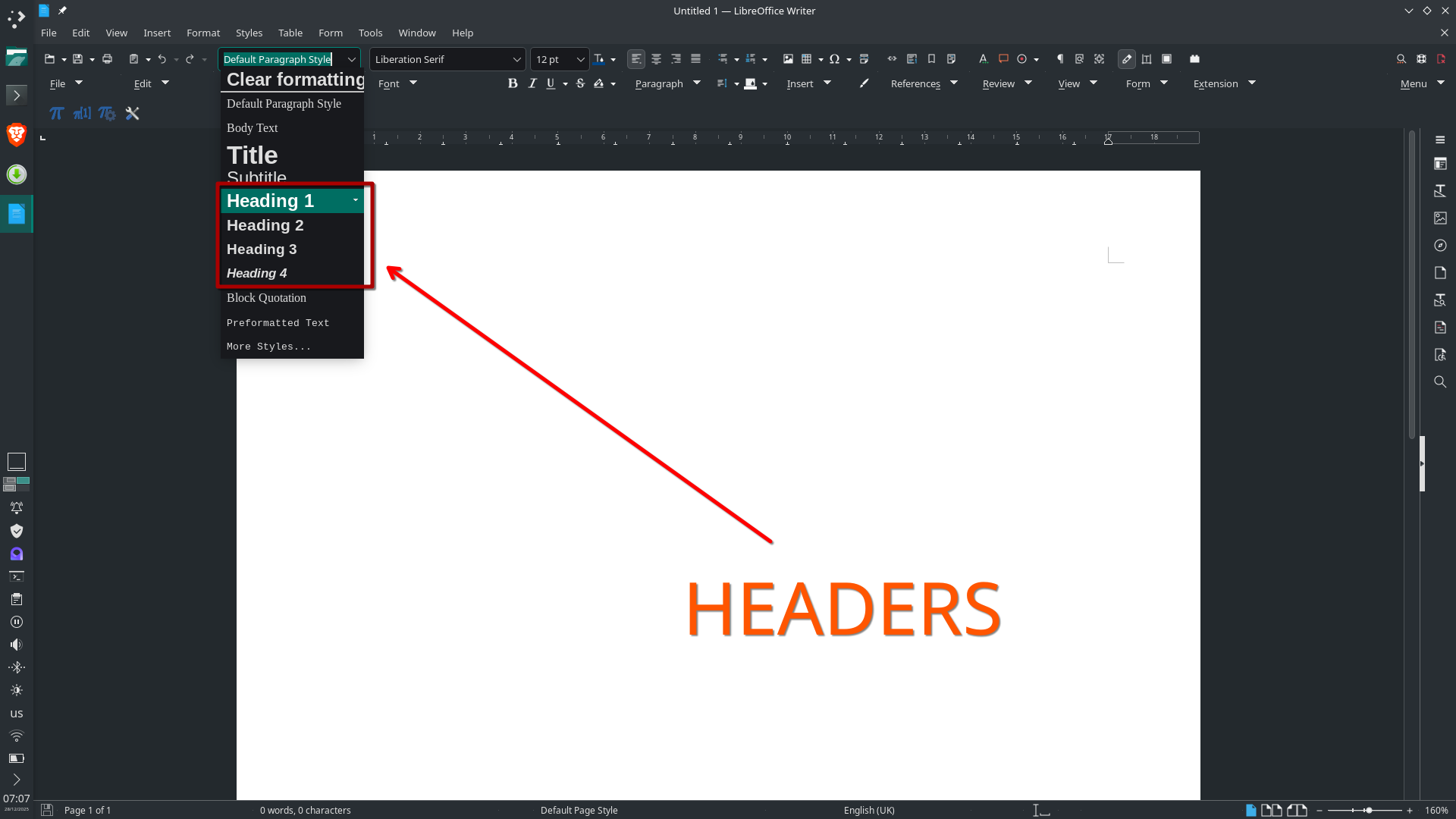
In org-mode text lines that start with asterisks followed by a space, are recognized as headers. The level of the header is determined by the number of asterisks!
* This is a header of level 1

Here I write some text under the first header

** Level 2 header

Which is under the previous level 1 header.

* Another level 1 header
Useful tricks
Fast outline
- Situation
- You are brainstorming with your collaborators, about the structure of a project, and you'd like a tool to quickly build and modify the outline structure.
- Solution
- Using
org-modeyou can do that!- Pressing
Alt+Enter(inemacsits is customary to denote theAltkey by the symbolM, andEnterbyRet, i.e. pressingM-Ret) creates a header of the previous level. If there is no previous level, it creates a level 1 header. - Pressing
M-UpArrowandM-DownArrowmove the header you are editing up/down the "list", to reorder the outline. It carries all the sub-content in the process. - Pressing
M-LeftArrowandM-RightArrowpromote or demote the current heading.
- Pressing
Cycling view
- Situation
- Your brainstorming went wild, and your team and you wrote down a large (
org) document with ideas. How to gain the great picture? - Solution
You might toggle the view using the keybinding
S-TABto see only the first level headers (OVERVIEW), only the headers (CONTENTS), or the whole document (SHOW ALL).If you use
TABwhile placed in the first asterisks of a header, you will toggle the view restricted to the current header. In this case the views areFOLDED,CHILDRENandSUBTREE.
Sparse trees
- Situation
- You'd like to focus on the ideas related to a certain task or key-word.
- Solution
- The feature called sparse trees, bind to the keybinding
C-c /(Cntl+c /), allows you to do just that… you might use regular expressions!
Lists
List are a very useful tool to give structure to our ideas. In \(\LaTeX\) there are three environments of type list: itemize, enumerate and describe. Similarly, in HTML there are ordered and unordered list (<ol> and <ul>).
In org-mode we inherit the three versions in \(LaTeX\).
Example of unordered list:
- This is an item
- And another
- the third one

Example of ordered list:
1. This is an item
2. And another
3. the third one

Example of description list:
- Languages :: English, Spanish, Italian
- Libraries :: =numpy=, =pandas=, =scikit-learn=
Useful features
- If you write a list item (of whatever type), the keybinding
M-RETgenerates a new item of the same type. - List's items are sorted, promotes or demotes using the same keybinding as headers. In the case ordered list, the numbering is managed automatically.
- While you're editing an item, the keybindings
S-LeftArrowandS-RightArrowchange the type of bullet. It might toggle between ordered and unordered list.